Guide
How to use Cinevid
Everything in one place: live sports, TV channels, movies, shows and replays. Here is how each part works.
Home

Step 1
Home
- The top slider rotates through newly released movies and shows. Tap a dot under the details to jump to one.
- Scroll down for Live Now events, TV channels, trending movies, top shows and match highlights.
- Use View all on any row to open that section.
Live events
Step 2
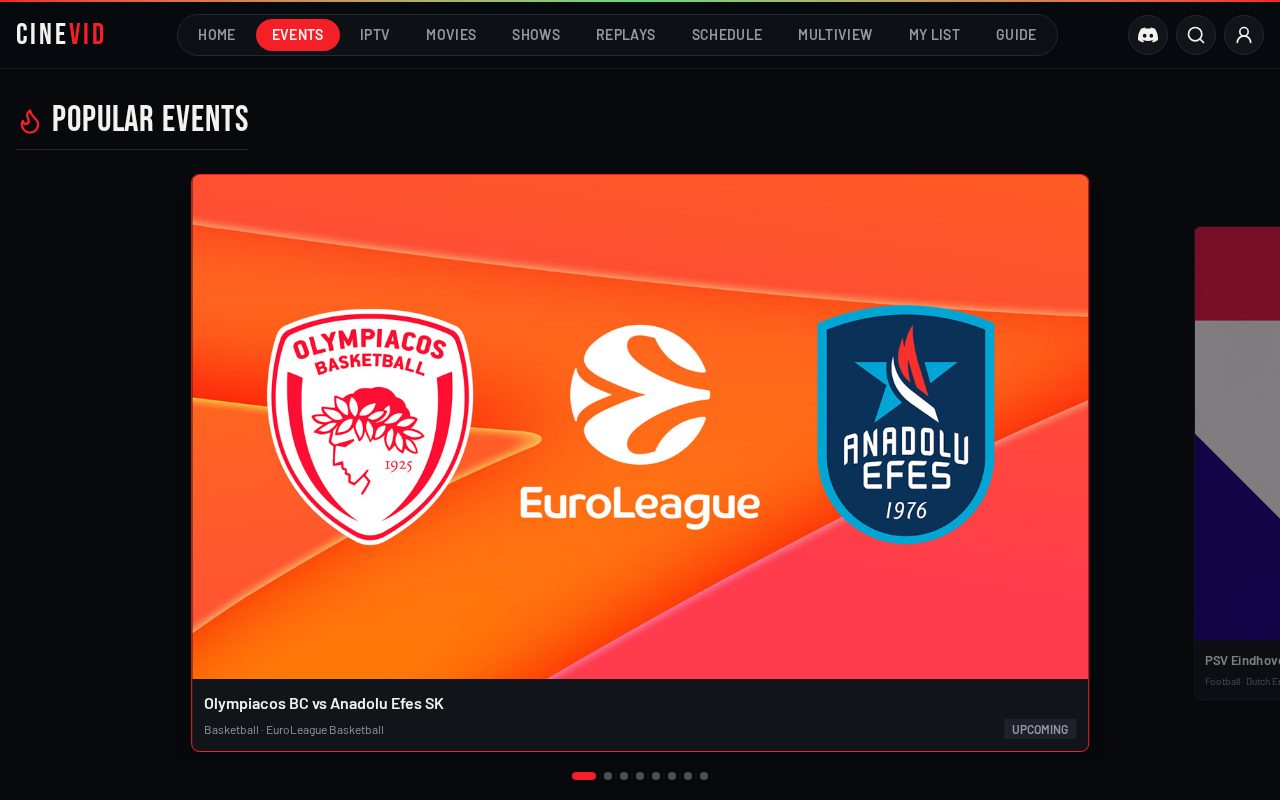
Live events
- Featured events at the top are ranked by how many people are watching right now.
- Search by team, or filter by status, sport and league.
- Open an event to watch. Each server shows how many people are watching it; if one does not play, pick another.
- Come back to an event and a small note offers to continue on the server you used last.
IPTV channels
Step 3
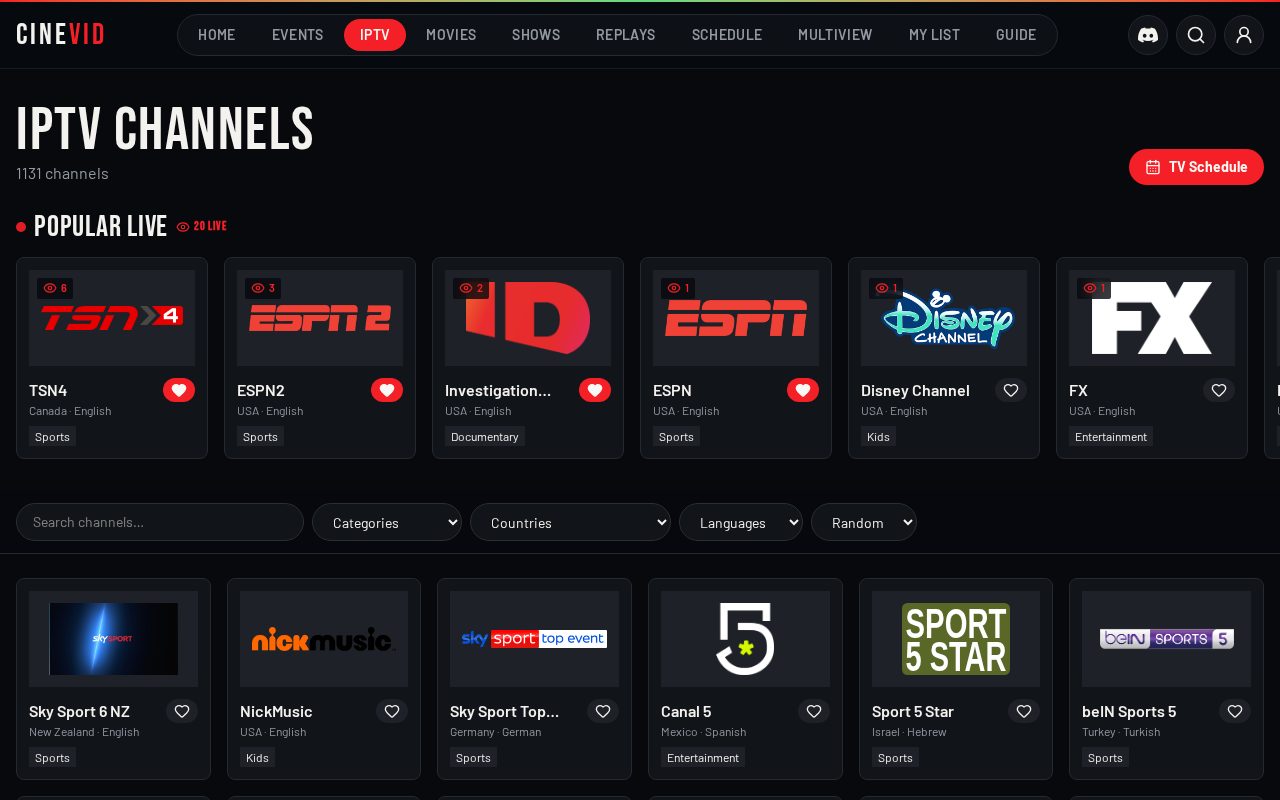
IPTV channels
- Browse 1,000+ channels with their logos, country and language.
- Filter by Categories, Countries and Languages, or search by name. Sort Random, A to Z or Z to A.
- Popular Live shows channels people are watching at this moment, with the live viewer count.
TV schedule
Step 4
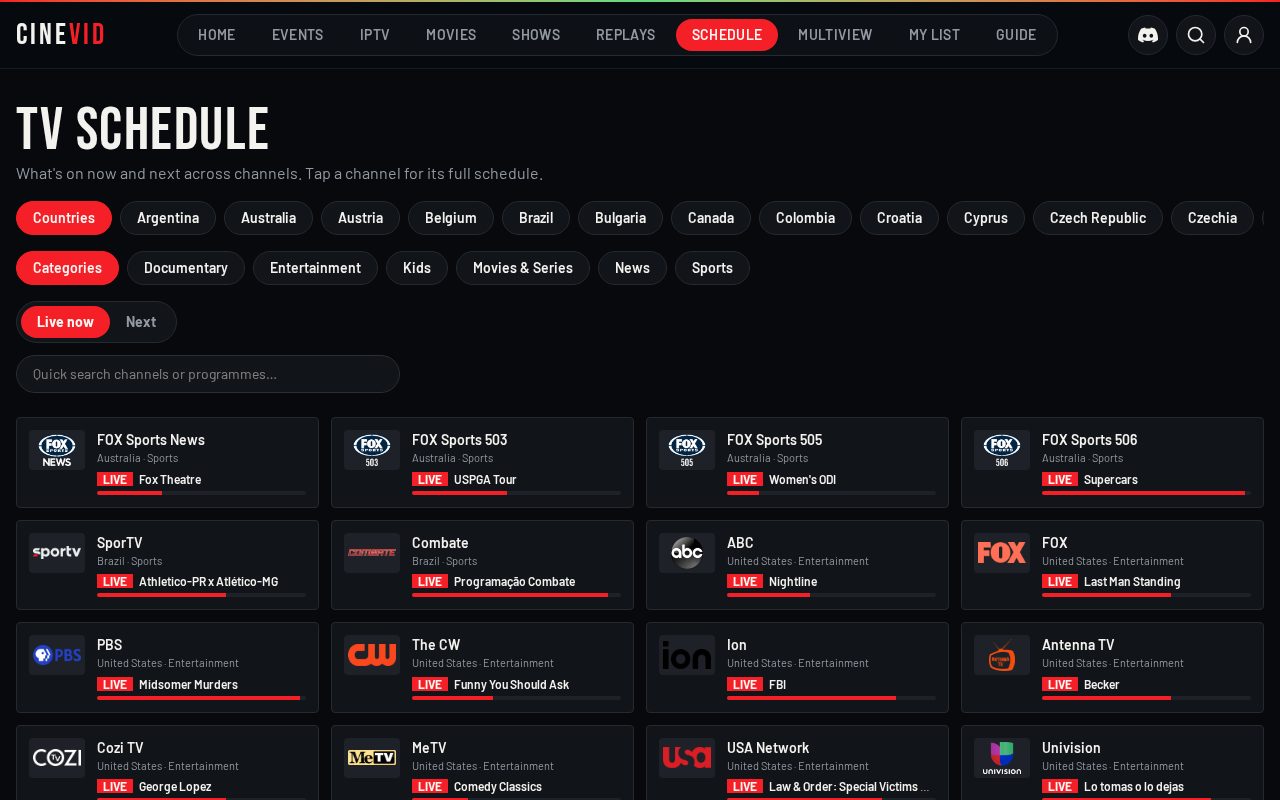
TV schedule
- Pick a country and category, switch between Live now and Next, and use the quick search to find a programme.
- The bar under a programme shows how far into it you are.
- On a channel page, tap See schedule to view its listings.
Movies & shows

Step 5
Movies & shows
- Switch between Trending, Popular, Top rated and more; filter by genre, production company or TV network, or search.
- Continue Watching brings you back to the exact movie or episode you left.
- Tap any poster to start watching.
Watching a show
Step 6
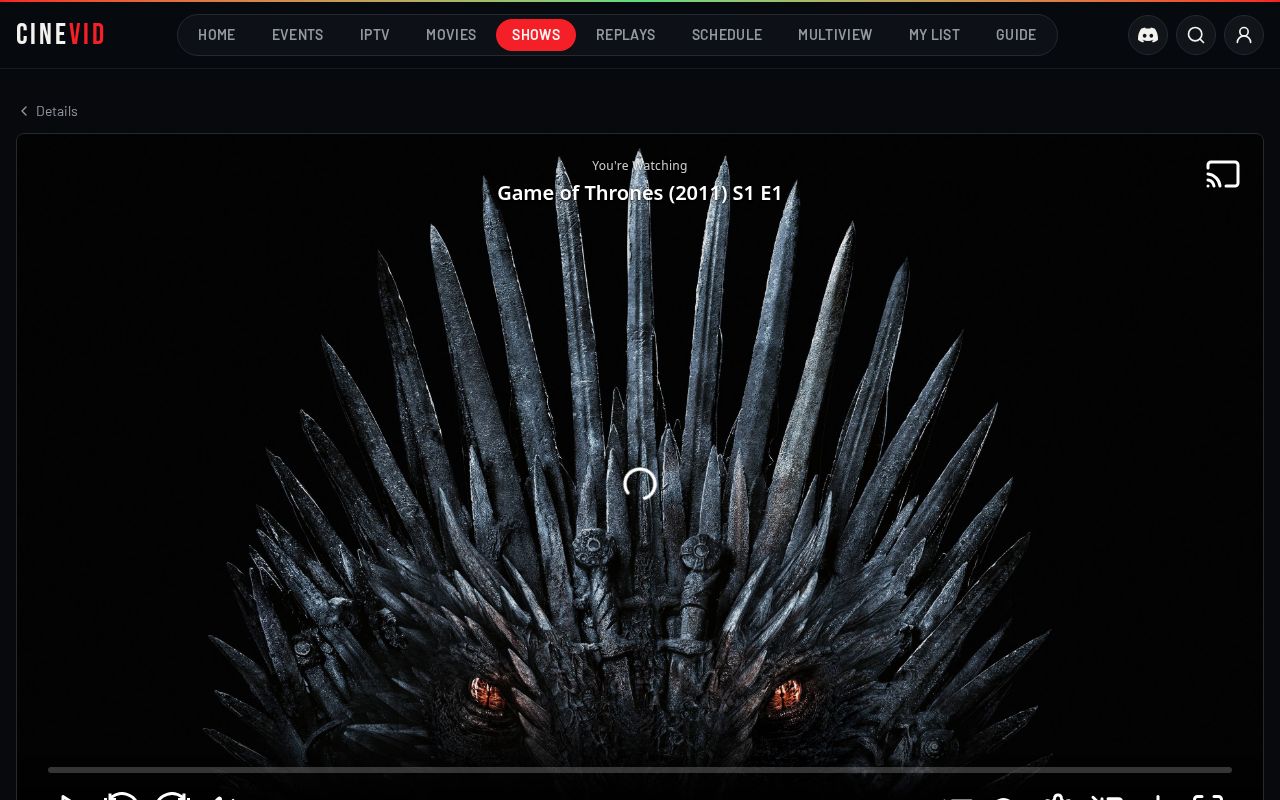
Watching a show
- Choose a season, then an episode. The player switches right away.
- Pick any server under the player. If one does not play, try another.
- Use the fullscreen button inside the player to watch full screen on any server.
- Every episode has its own download button, plus a Download button for the one you are on.
Replays & highlights

Step 7
Replays & highlights
- Watch short or full highlights and every goal clip.
- React with an emoji — you can switch to a different reaction any time.
- Leave a comment as a guest; the views chart shows total visits over time.
Multiview
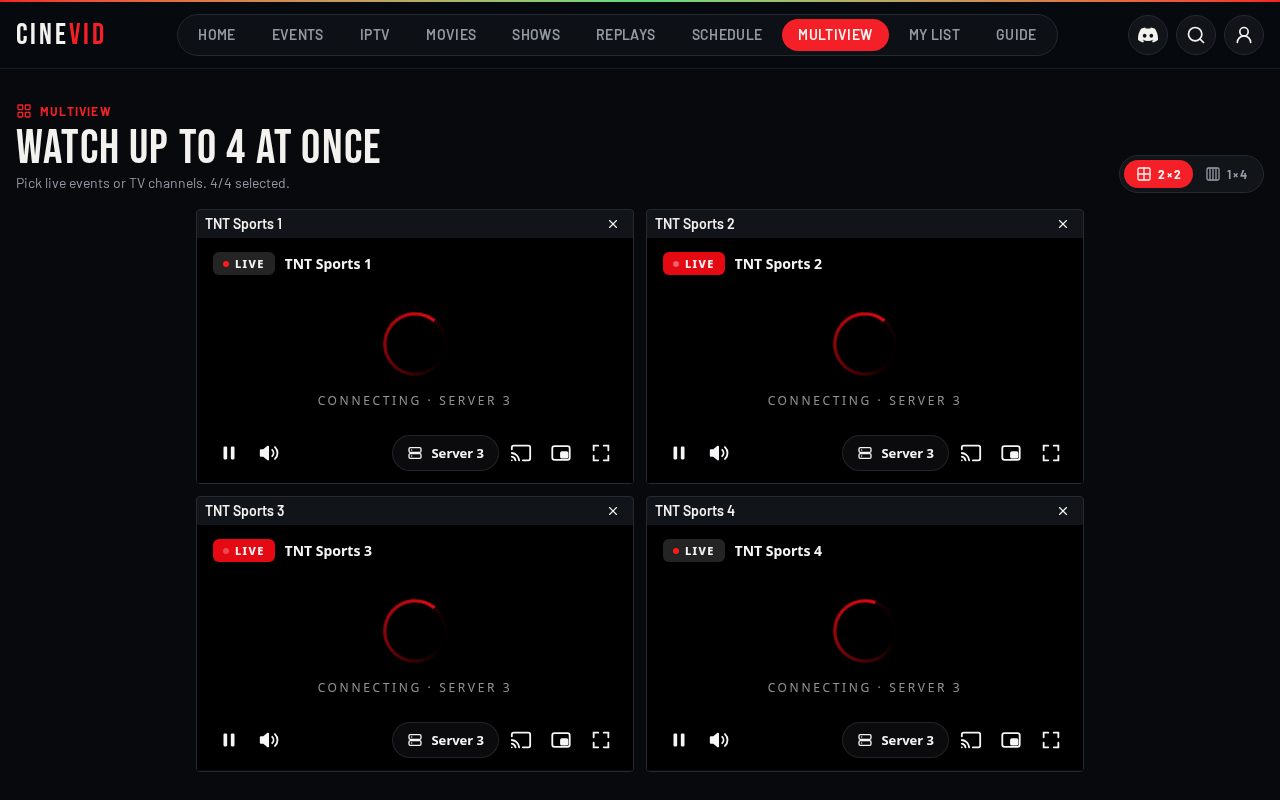
Step 8
Multiview
- Tap Add stream and pick live events or TV channels.
- Watch up to 4 at the same time, side by side.
- Tap the X on a stream to remove it. Your picks are kept for next time.
My List
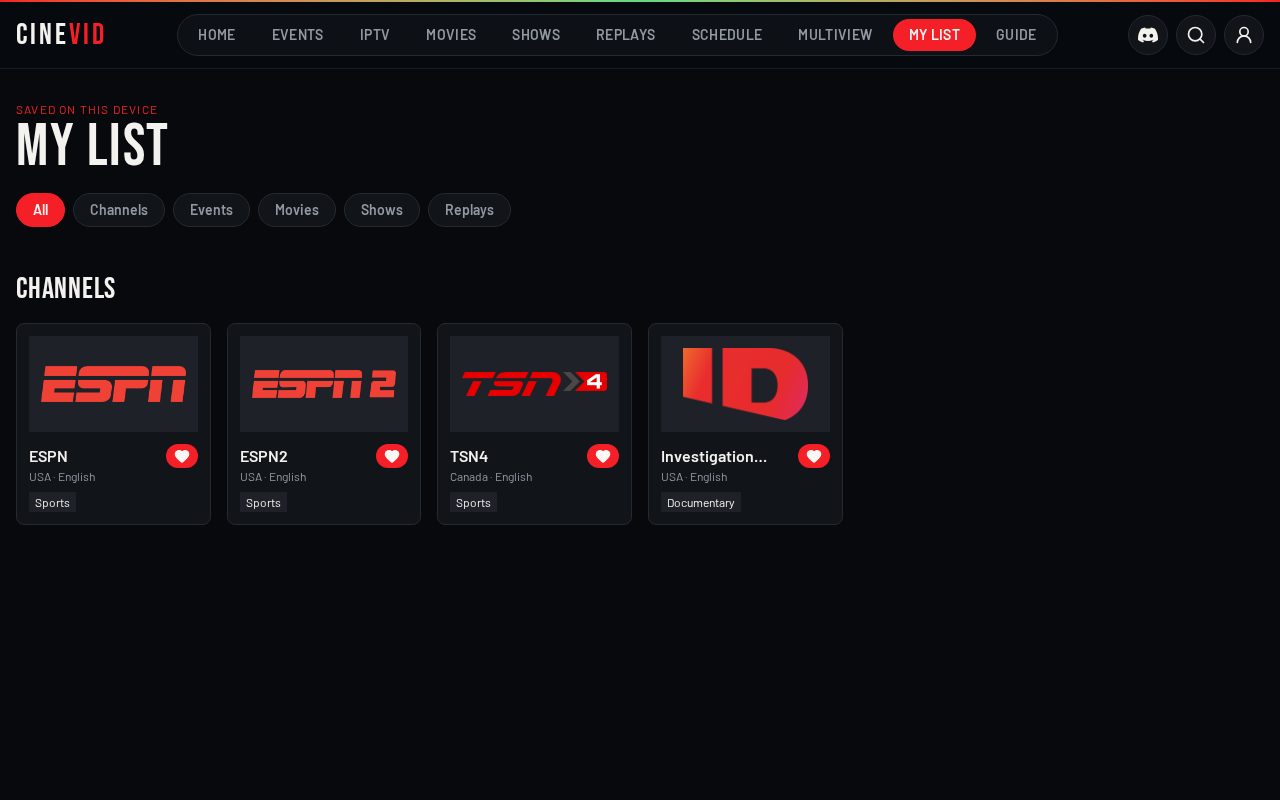
Step 9
My List
- Tap the heart on any channel, event, movie, show or replay to save it.
- Everything you save lives together here, with filters by type.
- Sign in to keep your list on all your devices.
Your account

Step 10
Your account
- Tap the profile icon in the top right corner.
- Sign in with your username and password. Your list, continue watching and settings are saved to your account.
- Sign in on another device and everything is there.
Signing in
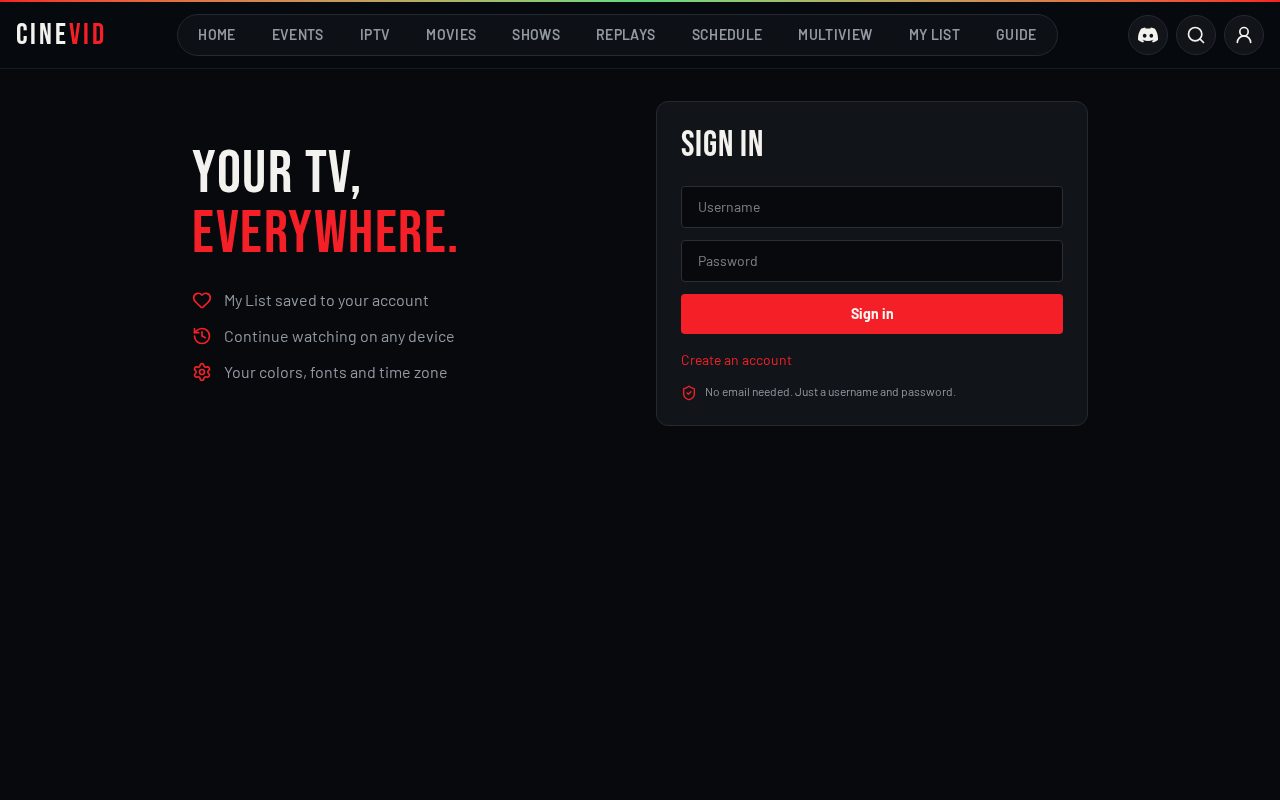
Step 11
Signing in
- New here? Tap Create an account, pick a username and a password of at least 6 characters, then type the security code.
- Anything saved before signing in is kept and merged into your account.
Settings
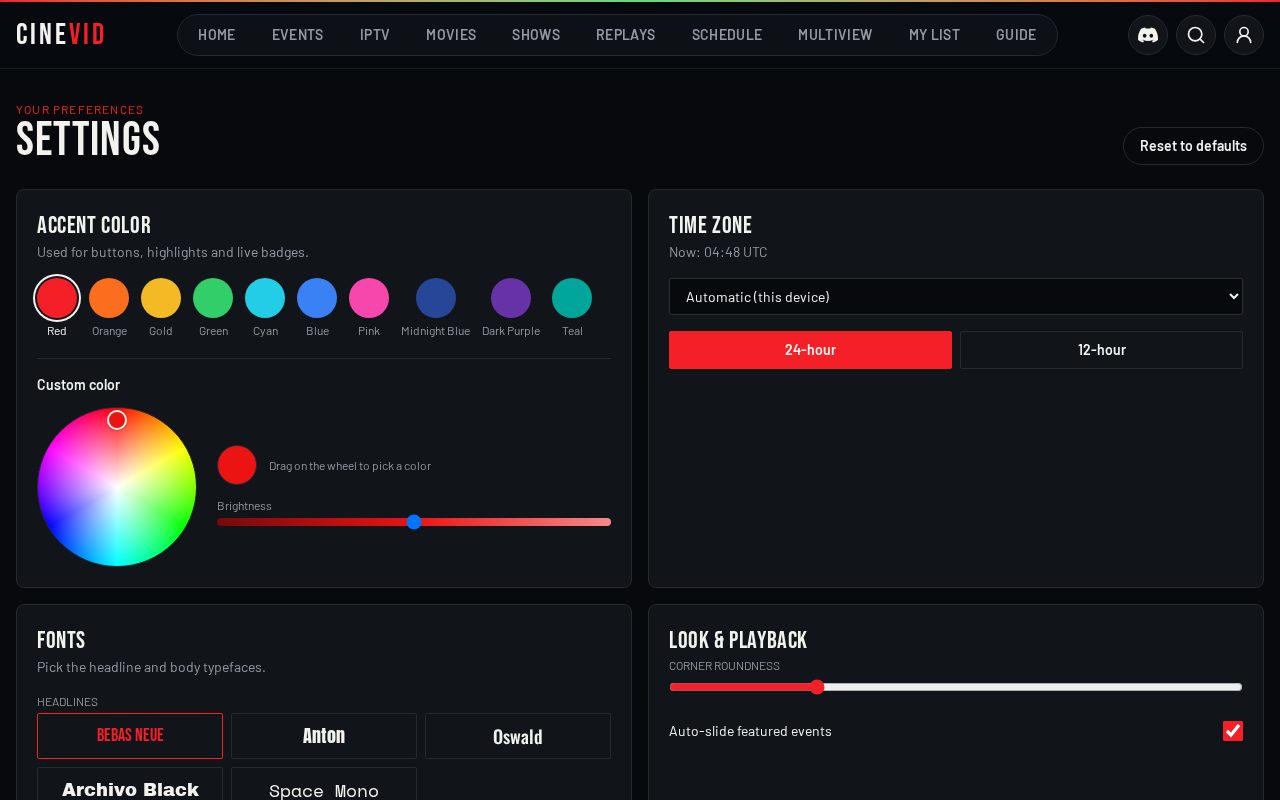
Step 12
Settings
- Pick your accent color (red by default), fonts and corner style.
- Set your time zone and 12 or 24-hour clock for all event and schedule times.
- Open Settings from the profile menu.
